Publish to a cloud folder
The folder is the published map. Groundwork reads it each time the map loads, so you do not upload anything.
Folder layout
The folder that you publish holds one .qgs file and the GeoJSON file or files that it refers to:
street-trees/          ← this is the folder you publish
├── street-trees.qgs
└── trees.geojson
When Groundwork reads the folder, it applies these rules:
- A missing data file does not stop the project from loading. Groundwork skips that layer and shows a warning.
- A layer that uses a Shapefile or a GeoPackage does not show on the map. Groundwork lists the layer when you connect the folder. But it shows no message when the map opens again later, so compare the layer list with your project each time.
- A GeoParquet or FlatGeobuf layer is read-only. Use GeoJSON for each layer that your users add features to.
- The project can load data only from the folder that you publish, or from folders in it.
If you publish several maps, the usual arrangement is one folder for each map, in a container folder of your own. Do not share the container folder, and do not make a link for it. A link to the container folder opens all the maps in it, whatever the settings of each map folder. On Dropbox Basic and Plus, if you share the container folder, you also cannot give the maps in it their own settings.
Publish the folder
Connect Groundwork to Dropbox
- Create a map.
- Under Or connect your own data, choose Dropbox.
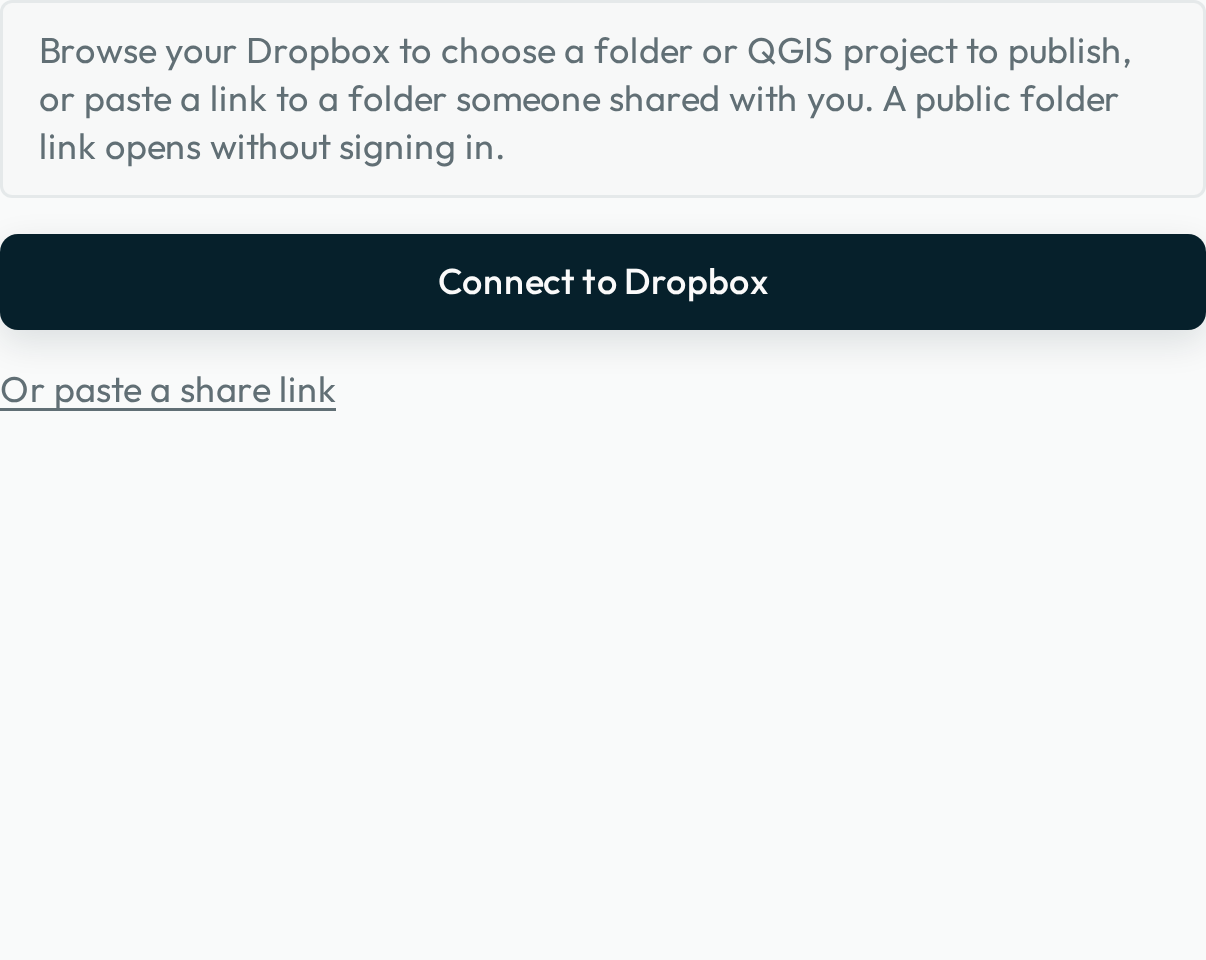
- Click Connect to Dropbox.
- Sign in.
You sign in only once.
Find the folder and choose what to publish
If a folder holds project files, Groundwork lists each file. If a folder holds only data files, Groundwork shows Publish this folder. You cannot publish the top level of the account.
To publish a folder that another person shared with you, use Or paste a share link in the same panel. That folder does not show in your own Dropbox. A pasted link does not point to a project file. So that folder must hold exactly one project file, or none if you publish a folder of data files.
Choose who it opens for
Groundwork reads the sharing settings of the folder, and tells you what they mean. If the folder has no share link, Groundwork offers to make one, for only people invited or anyone with the link. Choose carefully, because this choice sets the sharing of the folder in Dropbox itself.
Check the map
Before you configure or share anything, press Open as a map. Make sure that your map shows, with its styles.
Public link or private folder?
Make this choice before you share anything. It decides if Groundwork can save your team’s edits to the folder.
- Public link (“anyone with the link”): the map opens without sign-in, and anyone who gets the folder link can read the data. Groundwork cannot save edits to it. Use a public link for data that does not need edits.
- Private folder: share the folder with specific people as members with edit access. When they sign in with their own Dropbox account, Groundwork writes their changes to the folder.
To publish a OneDrive or SharePoint folder, paste the folder’s link into the OneDrive panel. You can browse folders only in Dropbox. Groundwork cannot save edits to a map opened from OneDrive or SharePoint.
How Groundwork saves your team’s edits
When a folder member with edit access signs in and saves a change, Groundwork writes the updated GeoJSON file to your folder. It shows Saved to Dropbox beside the layer name. Groundwork writes only the data files, and never changes your .qgs file. Groundwork does not keep versions of its own. So use the version history in Dropbox as your record of changes, and to go back to an earlier version.
When two people change the same file, Groundwork usually adds the second person’s change to the latest version and saves that; otherwise, the copy in Dropbox wins. Groundwork then offers the second person the latest version, so that they can make their change again on it. A message says that Groundwork could not save your change in the User Guide tells what the second person sees.
Publish a folder without a QGIS project
You can publish a folder that holds GeoJSON, GeoParquet, FlatGeobuf or raster (.tif or .tiff) files and no QGIS project. Groundwork makes a map from the files that it finds, and gives each layer the name of its file. You choose which layers are on when the map opens.
This takes only seconds, but you lose almost everything that a project file holds: read-only layers, symbology, labels, layer names and order, the display field, and an opening view. For a map that is important to your team, publish a project file.
Update a published project
Change the project or data files, and let Dropbox sync them. The folder link and the Groundwork links that you sent still work. Your team sees the changes the next time they open the map. New layers show automatically. Groundwork keeps each person’s field settings, filters, sort and bookmarks for the layers that were already there.
In a folder published without a project file, the file name identifies the layer. So if you rename a data file, Groundwork treats it as a new layer.
Next: Configure the map.